Setup
Day of race - setup
Network setup
It’s considered good practice to separate tasks and functions between different computers and people as your resources allow. Consider the following different areas: Starts/Laps, Finishes, result verification, result printing. Often 2 dedicated people on computers can share the workload quite efficiently with a runner available to post results, go fix issues in the stadium or relay messages to the timers outside.
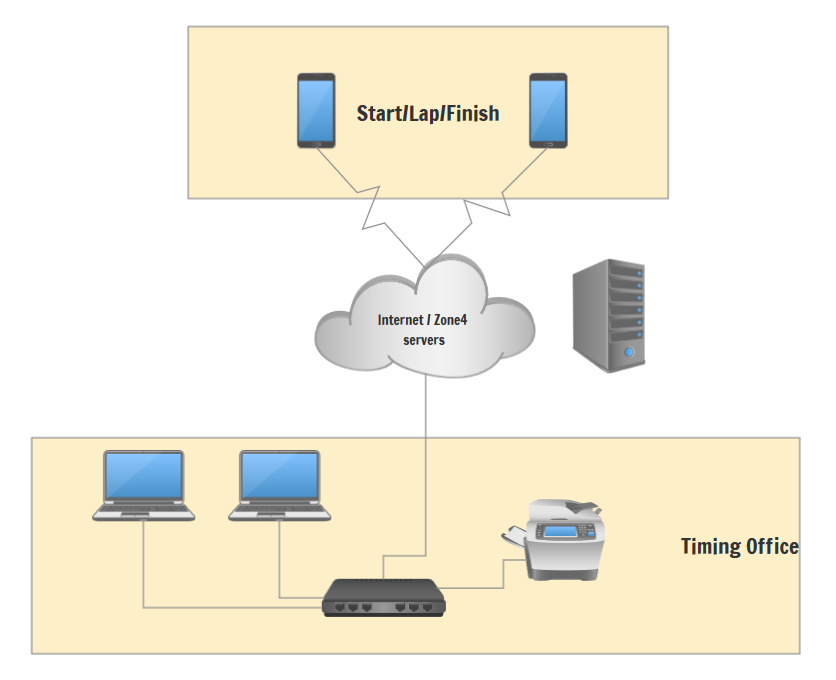
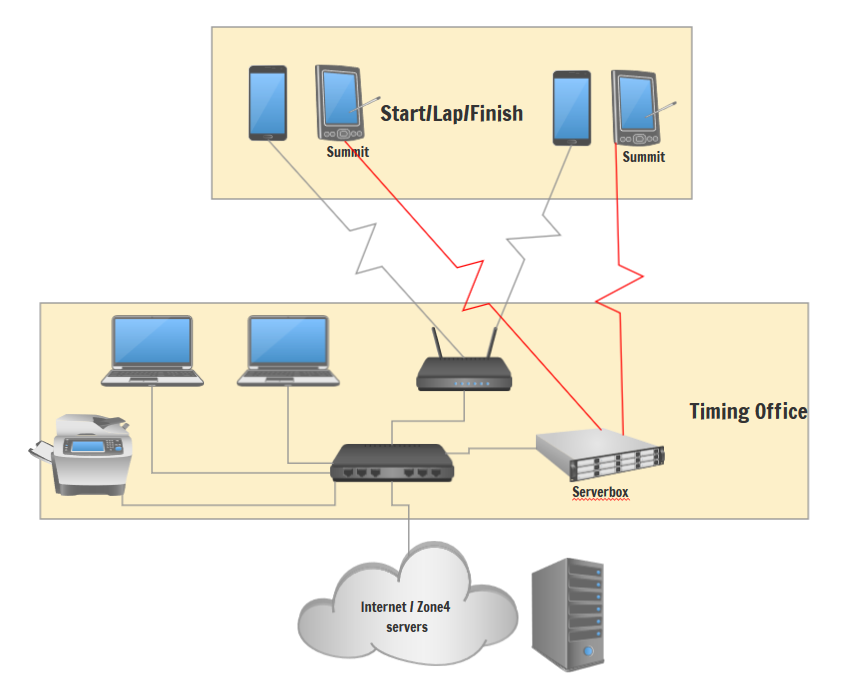
When using a serverbox or the old desktop Zone4, a network switch to connect all timing computer is highly recommended. Zone4 will ship a Ubiquiti Bullet Wifi access point with the serverbox, and while this is useful for the phones, it works best for the timing computers to be hardwired together. A networked printer is also a good idea, as this allows anyone to print results if necessary. See the following two network diagrams as examples.
Network diagram without serverbox
Network diagram with serverbox
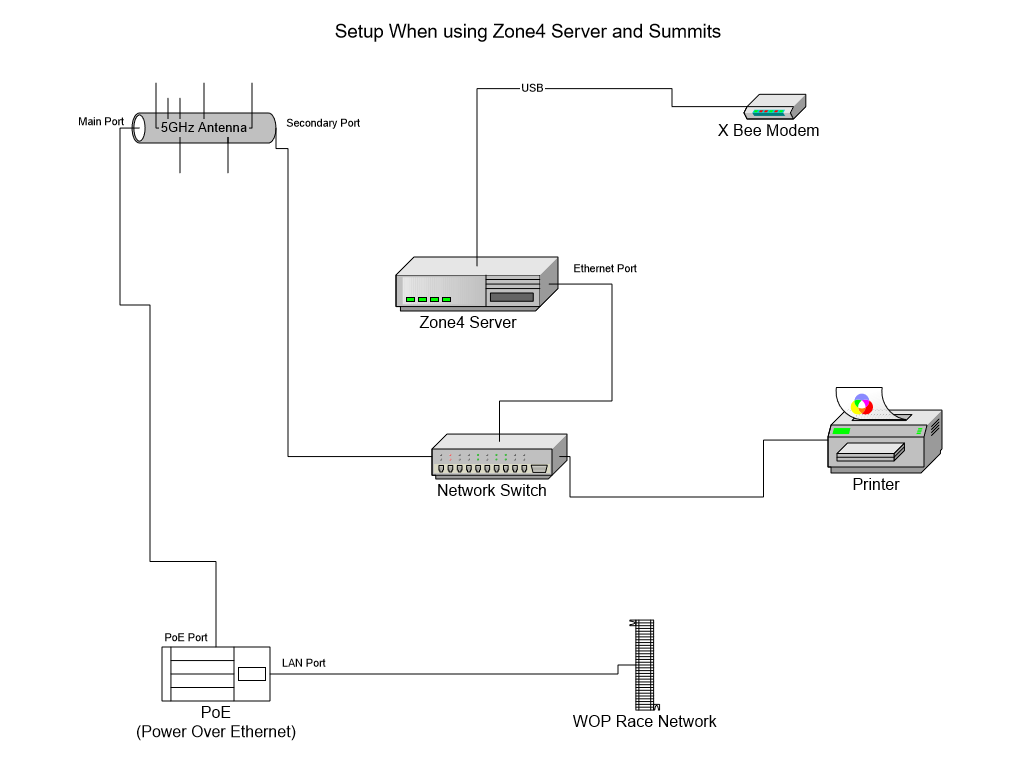
Network diagram from WOP with serverbox, POE, Summits
Physical setup
The loops must be installed the morning of the race and should be dug into the snow just below the surface. The loop is just a length of wire, and should run either side of your finish line, an even distance on either side. Zone4 recommends a width of 0.5-1m. The activators are a small brick sized box with a few status lights and connectors to attach the wire loop. This loop runs from the activator and across your course around the finish line or other timing point you wish to capture. The loop will plug directly into the activator into either of the two ports on the top. The activator has a simple on/off button, and status lights to show it is working and connected. After it starts up and aquires a GPS signnal, you should see all three LEDs lit up.
At this point, you can test the activator using the chip tester that came with the timing equipment. This is just a special chip that lights up when it receives the activator signal. You should be able to walk over the wire loop and see the tester light up. Again, the chip will use the centre point of the loop to capture the time, so the loop should be evenly spaced across the trail at a constant width either side of the finish line. Check that the tester picks up the signal everywhere you expect it to, and at the correct height.
Finally, the phones running the Zone4 app can be placed either on the ground, or ideally on tripods. Best is to place them 5m after the timing point or so, but we’ve used them on the side of the trail right at the timing point before with no issues. If you’re using the keypad for manual timing then you’ll need the phone at the line obviously.
You can test the phone app by taking a spare chip and running it over the wire loop activator. You should see it show up in the app and hear a ping noise.
This installation process takes a considerable amount of time, depending on how hard the snow is. Consider assigning 2 timing volunteers the task of digging the loops in before the race starts.
The Zone4 phones should remain with the wire loops and actuators, and not with the timing teams that may be using them. This allows for testing after installation and prior to the race.
TODO photo
Chip testing
Zone4 has a chip testing tool built-in to the web interface, but it’s a bit hidden away currently. It is highly recommended to run your chips through this tool in advance of the race in order to catch any missing or dead tags.
To find the chip tester tool, head to Zone4 and sign in. Instead of opening a race, go to the club overview page and choose Timing Devices from the menu.
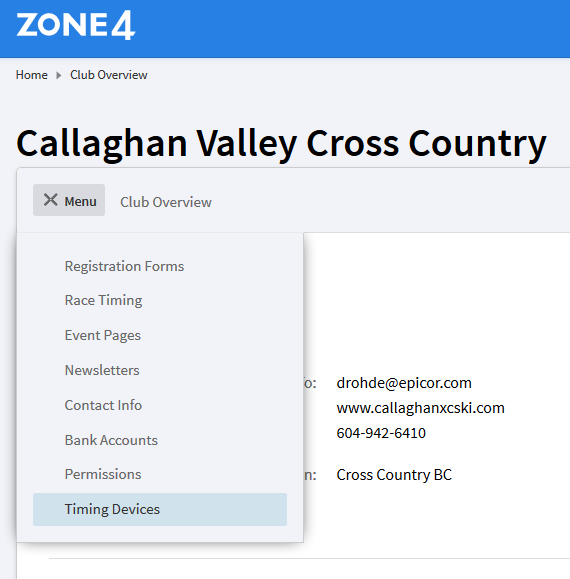
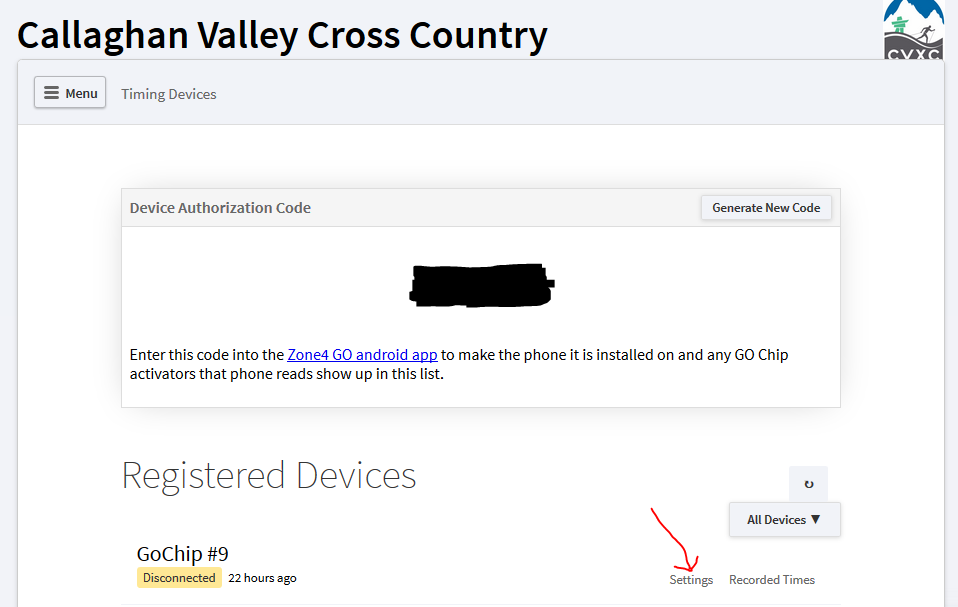
On this page you’ll find a device authorization code you may need for the phone apps, but also you’ll see a list of timing devices assigned to your club. Choose the GoChip device you plan to test chips with and click Settings.
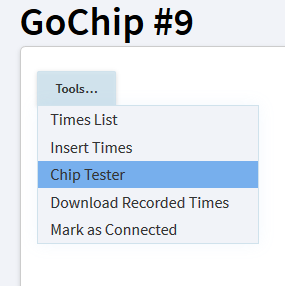
On the next screen you’ll see some settings for the times coming from this activator, under the tools menu select Chip Tester.
Now you’ve reached the chip tester!. Follow the instructions on the page and test each rack of chips. You’ll need to start your activator and a phone, shake a single rack of chips and pass it over the activator. You should hear tons of ping noises as the chips are activated and then read by the phone. Now back on the computer you’ll see text appear in the white space, either telling you that certain chips from the rack are missing or that all chips were found.
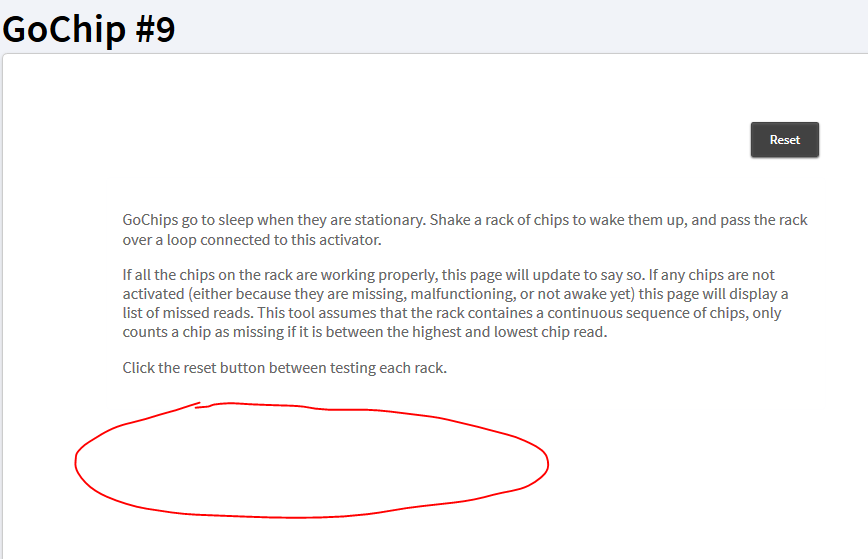
If any chips are missing you can try passing the whole rack over again, or open it up and hunt down those specific chips to test individually.
Once you’re done with one rack, hit reset and then try the next.
Chip distribution
The chips come on soft sided racks that roll up into a bundle. Each rack holds 100 chips, numbered A00-A99 or X00-X99 for instance. These racks have carabiners at each corner, making it easy to hang them up. A tent works great, as you can quickly and easily hang several racks of chips up, making it easy to find and pass them out. This also provides an obivous focal point for the racers to find and provides shelter for your volunteers. Make sure your chips are tested and out in the stadium well in advance of the first start, and encourage racers to move to the start and collect their chip early. Chip collection often proves to be a chokepoint and lines will form. In a large mass start race this can lead to delayed starts while the pack moves through to the start line. You may be able to assign extra volunteers to this task then move them to the finish line once the race is underway.
Chips are expensive to replace, so it is recommended that they are only handed out right before the start, and that they are collected promptly at the finish line before racers leave the finish corral.
One further consideration: when moving racks of chips around the stadium, be sure not to cross over a timing point, or you’ll end up with 100 unexpected times!